AutoBlog Wizard Guide
A complete walkthrough of the 8-step AutoBlog wizard for creating batch article campaigns
Last updated 9 months ago
AutoBlog Wizard Guide
The AutoBlog Wizard guides you through 8 steps to set up your batch article generation campaign. This guide covers every option in detail.
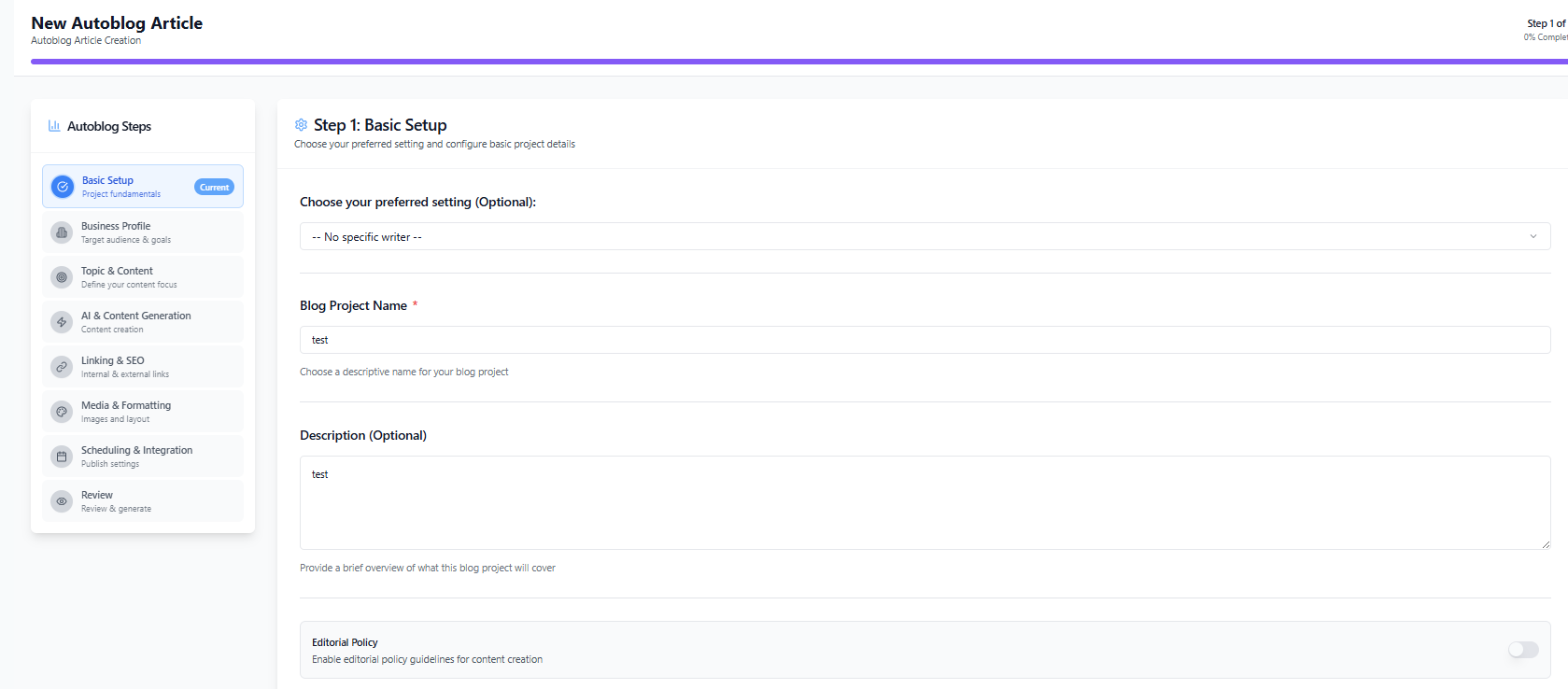
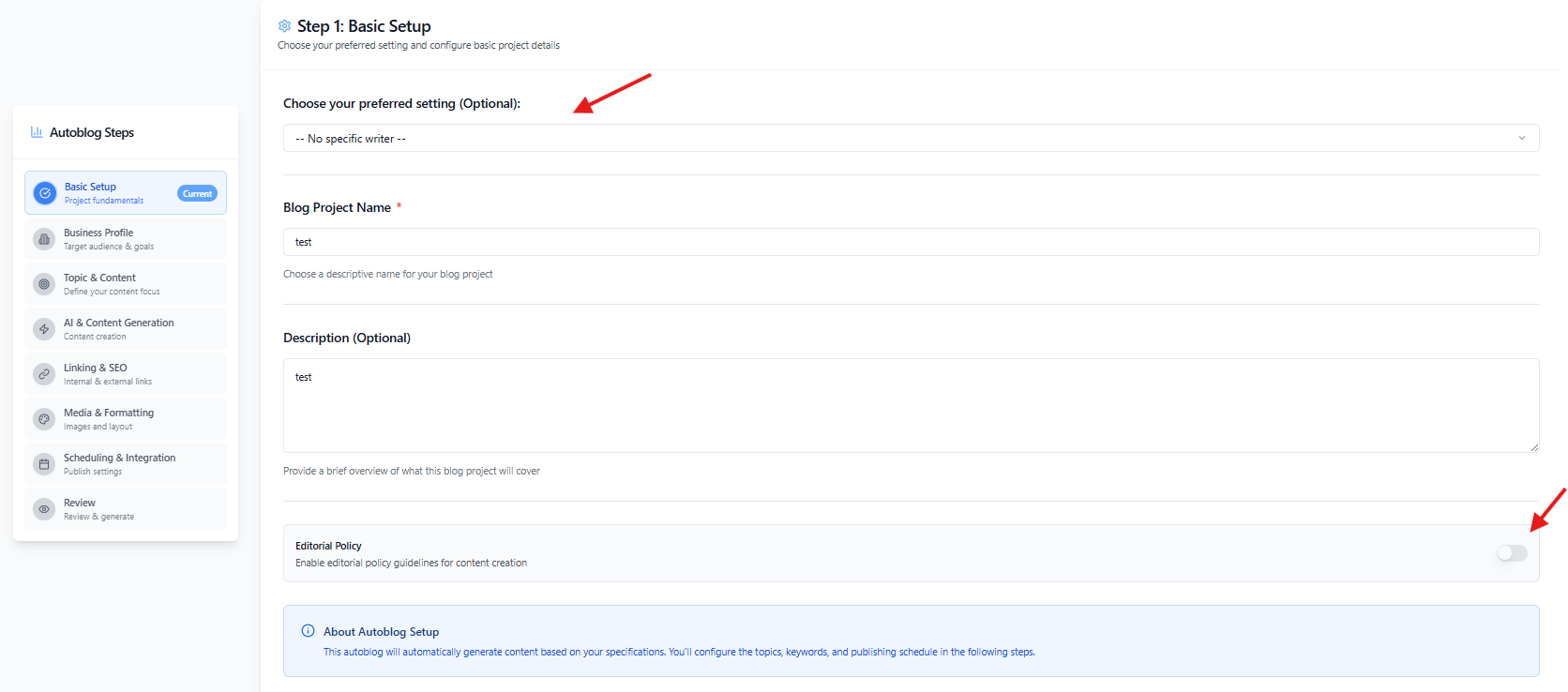
Step 1: Basic Setup
Configure the foundation of your AutoBlog campaign:
AutoBlog Name: A name to identify this campaign
Description: Optional notes about the campaign
Preferred Writer (Optional): Select a Writing Style Profile to apply consistent style across all articles. This auto-fills:
Tone and voice settings
Creativity and formality levels
Custom instructions
Formatting preferences
Editorial Policy: Toggle to apply workspace editorial guidelines
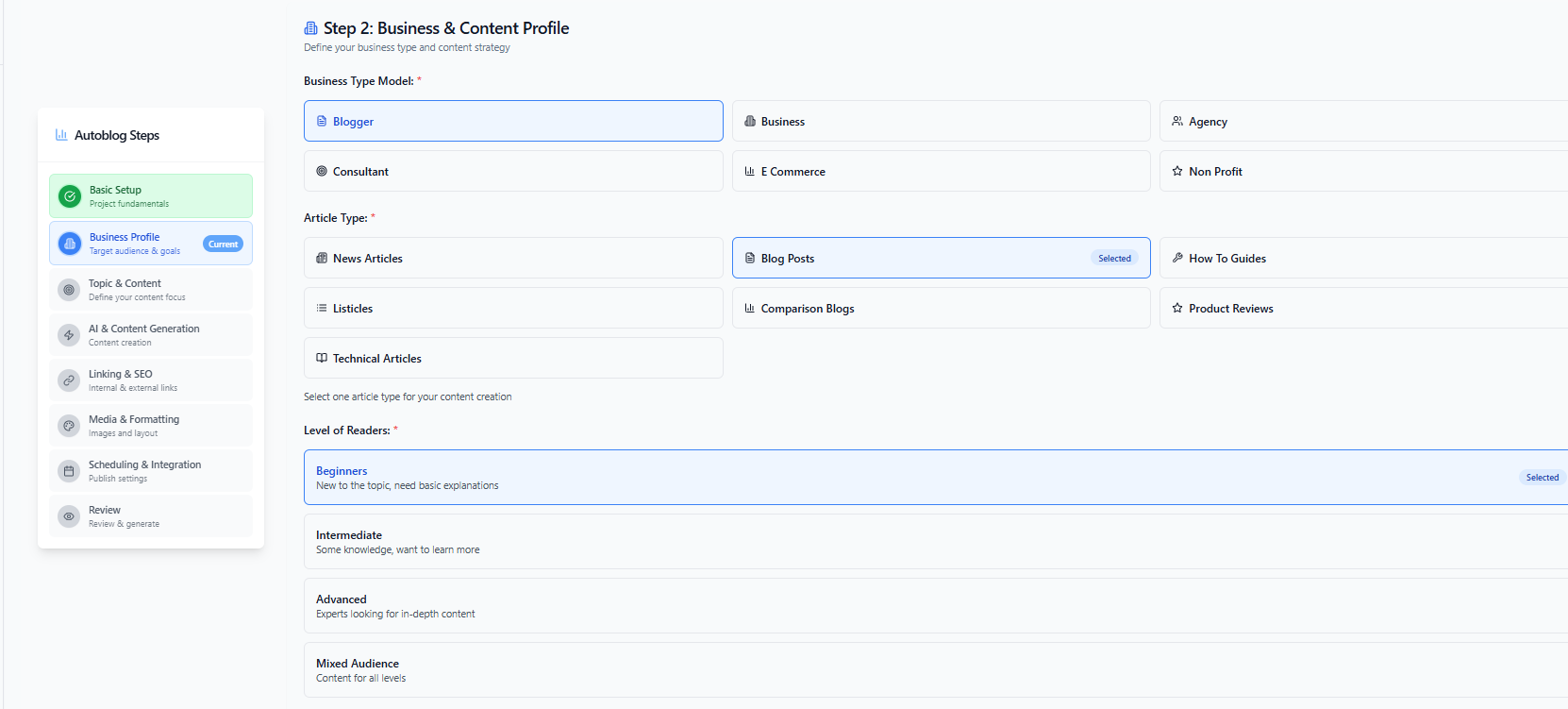
Step 2: Business & Content Profile
Define your content strategy for all articles:
Business Type: Your industry (Blogger, E-commerce, Agency, etc.)
Article Type: Content format (Blog Post, How-To Guide, etc.)
Reader Level: Target audience expertise
Content Goals: What you want to achieve
Call to Action: Desired reader action
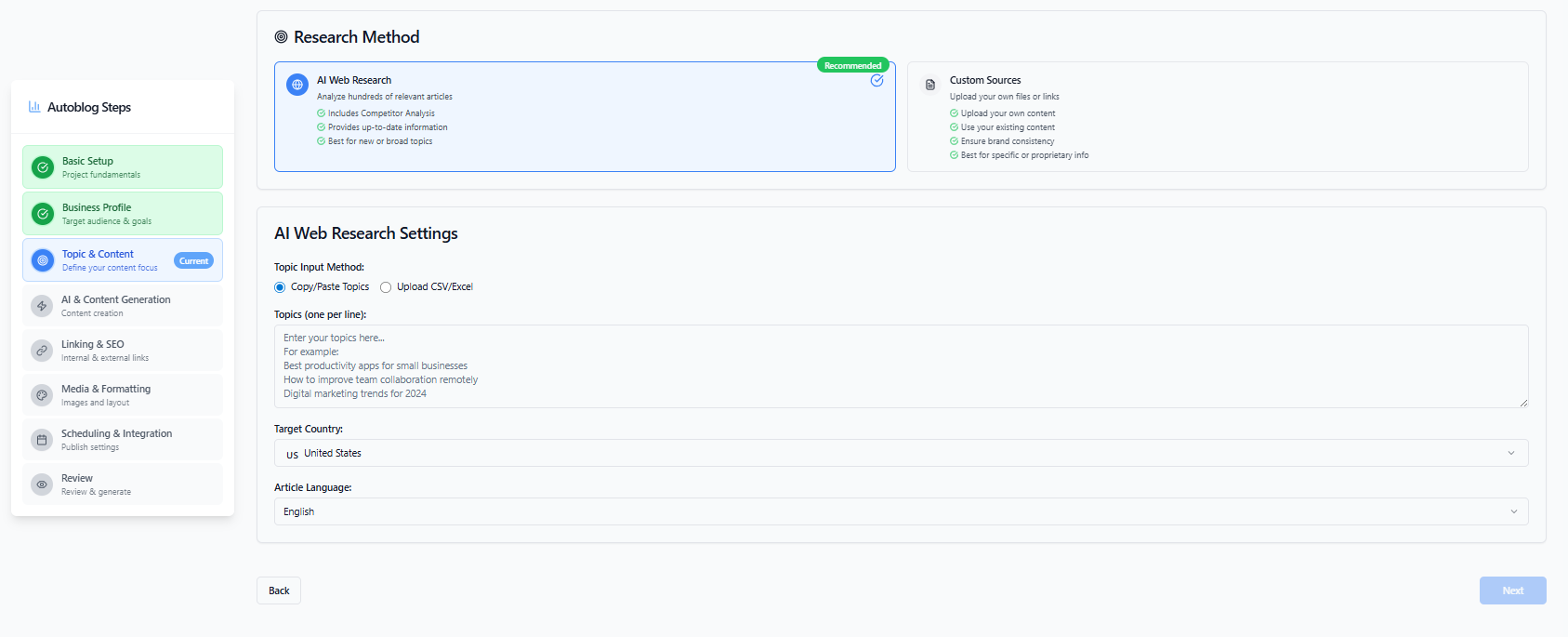
Step 3: Topic Definition
This is where AutoBlog differs from regular Blog projects. Enter multiple topics at once:
Topic Input Methods
Copy & Paste: Enter topics one per line in the text area
Upload CSV: Upload a spreadsheet file with topics in a column
For CSV Upload
Upload your CSV or Excel file
Select which column contains your topics
Review the extracted topics
Additional Settings
Target Country: SEO target region
Article Language: Content language
Research Method:
AI Web Research: AI researches each topic online
Custom Sources: Upload your own reference files or URLs
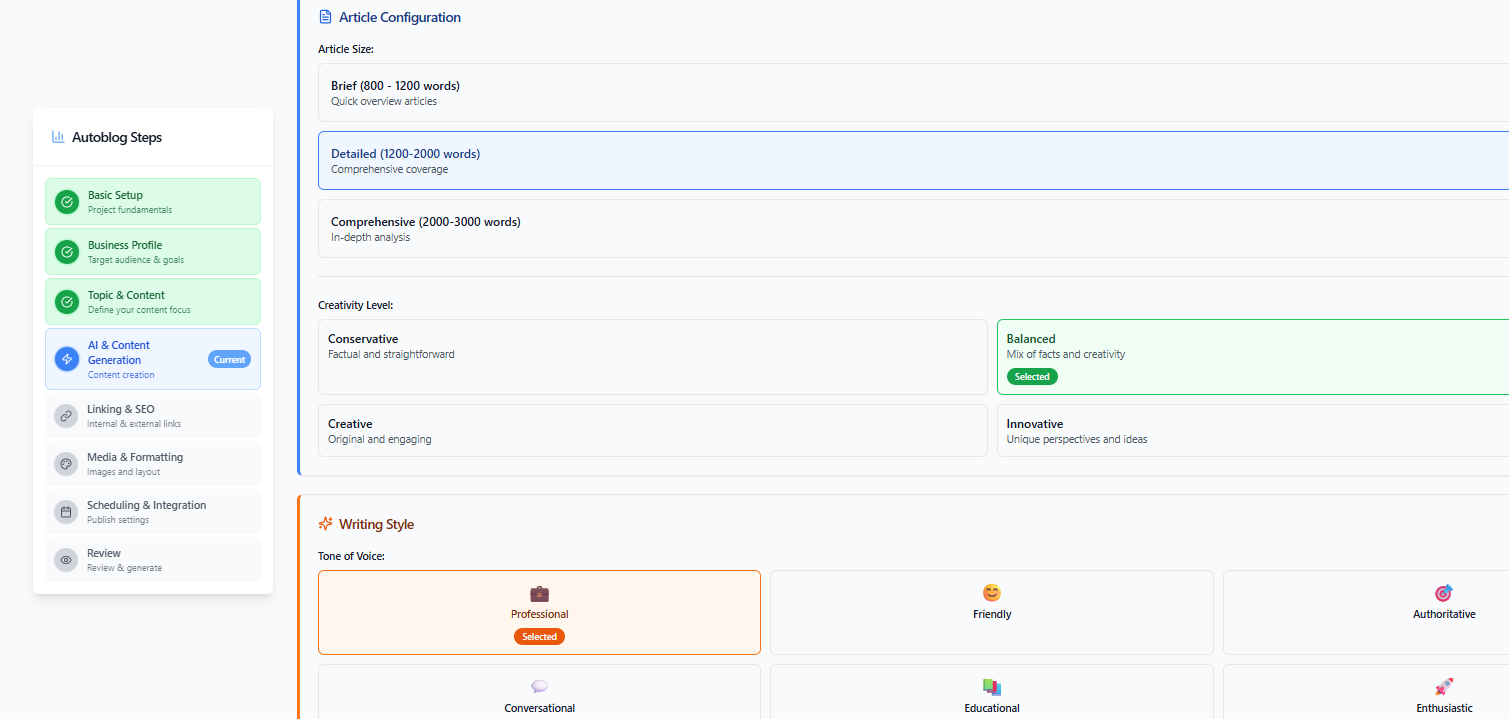
Step 4: AI & Content Generation
Configure how AI writes all articles (auto-filled if Preferred Writer selected):
Article Size: Brief, Detailed, or Comprehensive
Creativity Level: Conservative, Balanced, or Creative
Tone of Voice: Professional, Friendly, Casual, etc.
Point of View: First, Second, or Third Person
Formality: Formal, Semi-formal, or Informal
Include FAQ: Add FAQ section to each article
Custom Instructions: Special instructions for AI
Step 5: Linking & SEO
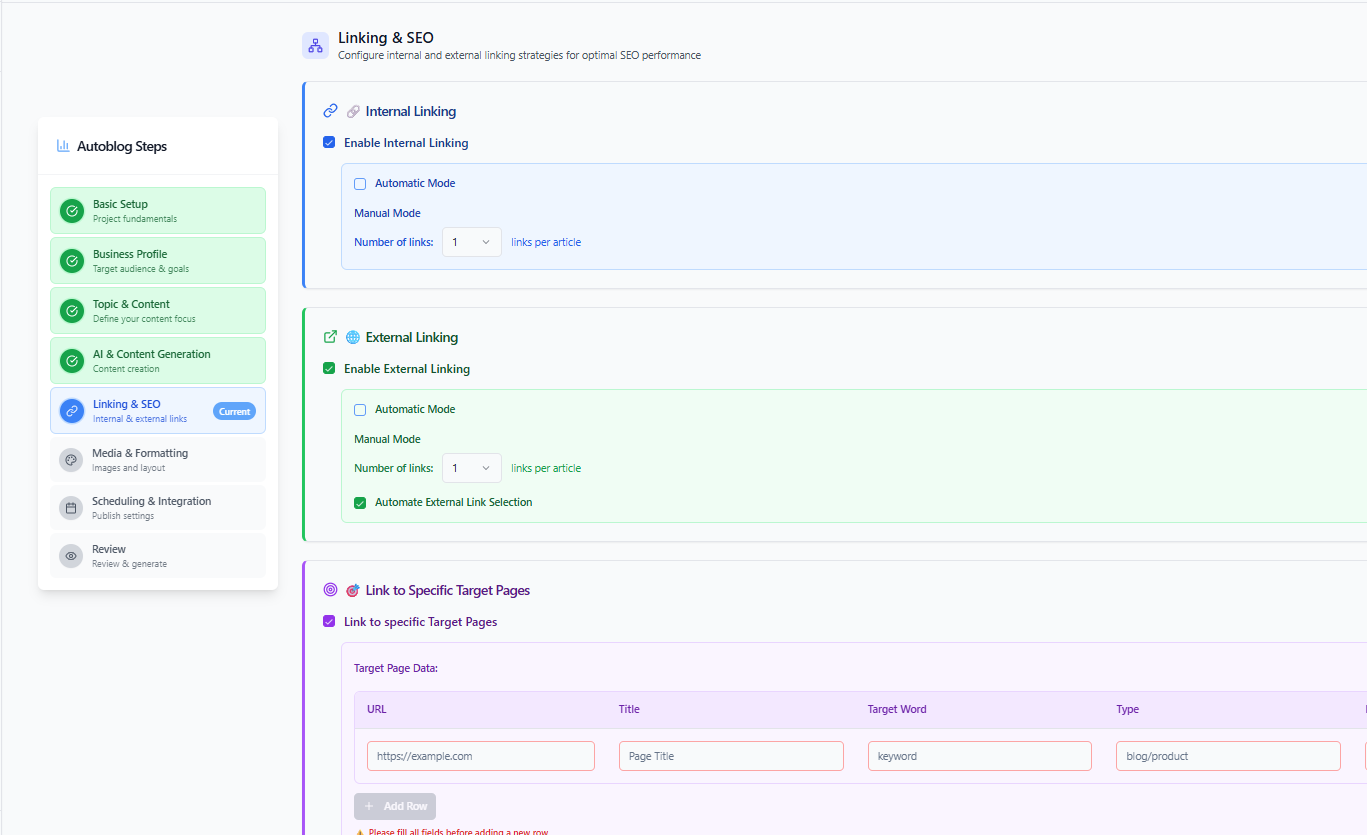
Set up link building for all articles:
Internal Linking: Enable and set number of internal links
External Linking: Enable and set number of external links
Include/Exclude Sources: Domains to prioritize or avoid
Target Pages: Specific URLs to link to across articles
Step 6: Media & Formatting
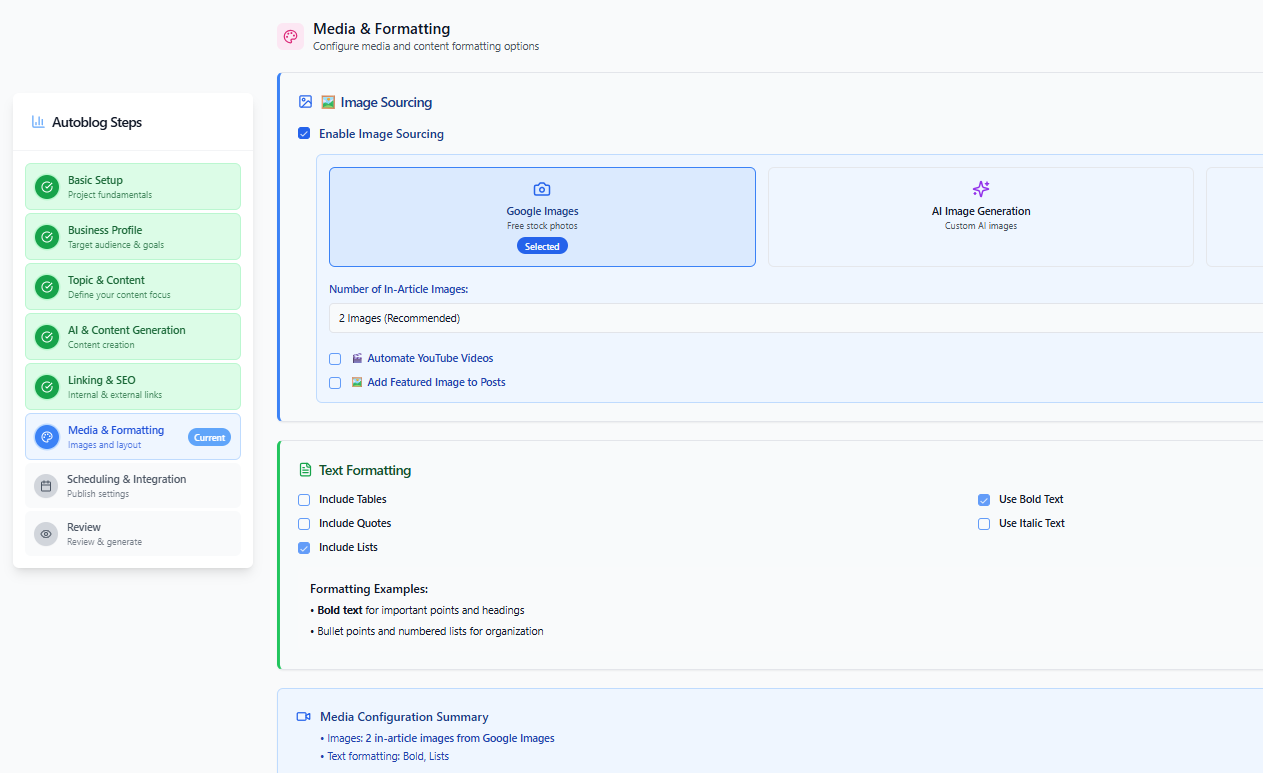
Configure images and formatting (auto-filled if Preferred Writer selected):
Image Sourcing: Google Images or AI Generated
Number of Images: Images per article
Featured Image: Add main image to each article
Auto YouTube: Embed relevant videos
Text Formatting: Tables, quotes, lists, bold, italic
Step 7: Scheduling & Integration
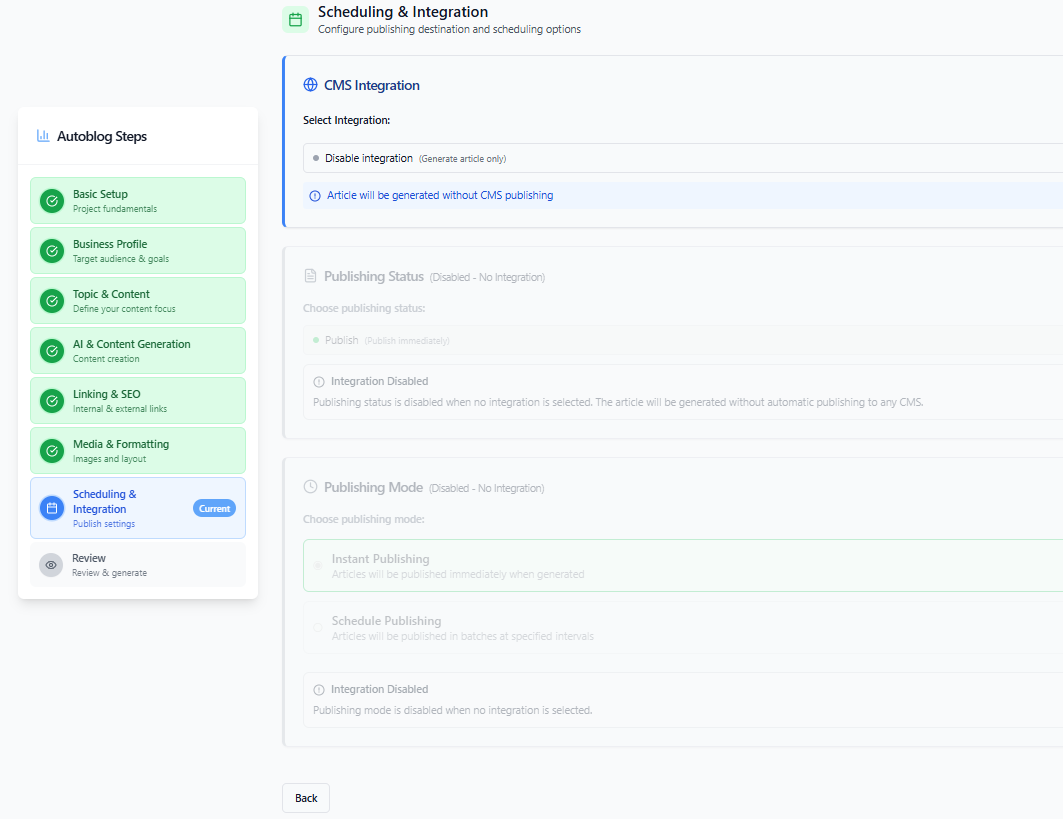
Configure publishing schedule and CMS integration:
CMS Integration
Select Integration: Choose WordPress or Shopify site
Category/Blog: Where to publish articles
Auto-Assign Category: Let AI choose categories
Publishing Schedule
Schedule Timeframe:
Over 24 Hours (up to 20 articles)
Over 1 Week (up to 150 articles)
Over 1 Month (up to 700 articles)
Over 3 Months (up to 2,000 articles)
Over 6 Months (up to 5,000 articles)
Start Date: When to begin publishing
Timezone: Your local timezone for accurate scheduling
Publish Status: Publish immediately, save as draft, or schedule
The system automatically calculates and displays a publishing preview showing when each article will be published.
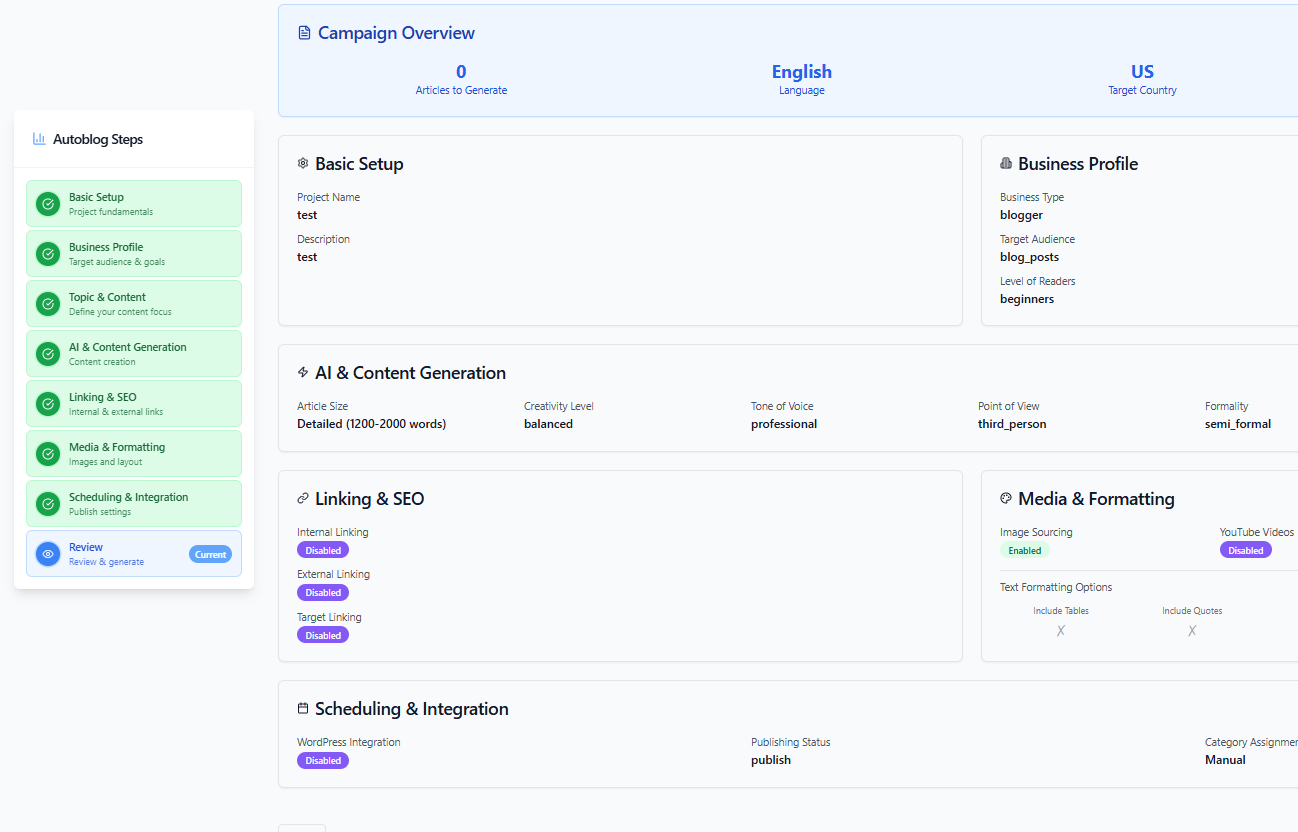
Step 8: Review & Launch
Review your complete campaign configuration:
Campaign Overview: Total articles, language, country, research method
Settings Summary: All configured options from previous steps
Click Start Campaign to begin generating articles. You'll be redirected to the articles page where you can monitor progress.
Tips for Success
Use Preferred Writer: Ensures consistent style across all articles
Start Small: Test with 5-10 articles before large campaigns
Spread Over Time: Longer timeframes produce more natural publishing patterns
Review First Articles: Check quality of initial articles before continuing