Managing Your Profile
Update your personal information, change your password, and manage notification preferences
Last updated 9 months ago
Managing Your Profile
Your profile page lets you update personal information, change your password, and manage notification settings. Access it by clicking your avatar in the sidebar.
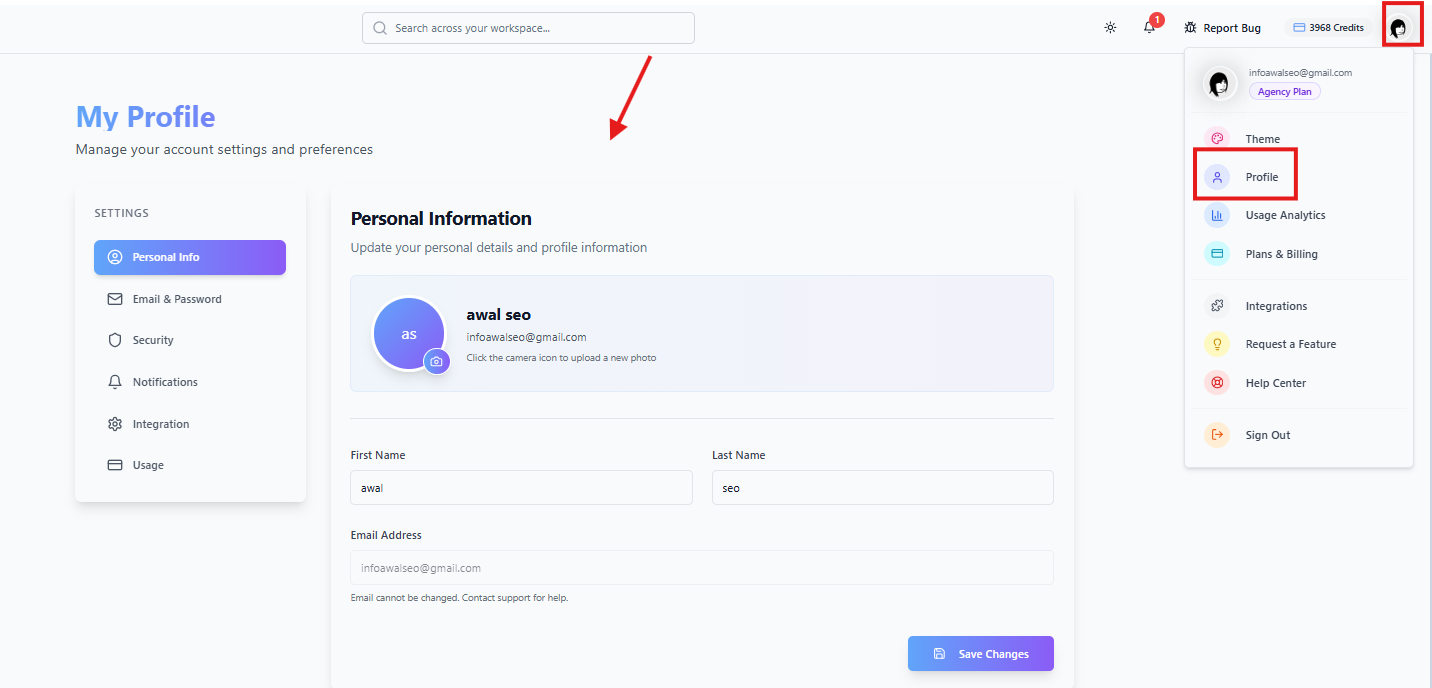
Accessing Your Profile
Click your avatar or name at the bottom of the sidebar
Select Profile from the menu
Profile Sections
Your profile is organized into six sections:
Personal Info: Basic information about you
Email & Password: Change your password
Security: Manage active sessions
Notifications: Control notification preferences
Integration: External service connections
Usage: Subscription and credit details
Personal Info
Update your basic information:
First Name / Last Name: Your display name
Email: Your account email
Phone: Contact phone number
Job Title: Your role or position
Company: Your organization
Location: Your city or country
Website: Your personal or company website
Bio: A short description about yourself
To edit:
Click Edit in the Personal Info section
Update the fields you want to change
Click Save Changes
Profile Picture
To change your profile picture:
Click the camera icon on your avatar
Enter the URL of your new profile image
Click Save
Email & Password
Change your password:
Click Email & Password in the sidebar
Enter your Current Password
Enter your New Password (minimum 6 characters)
Enter the new password again to Confirm
Click Change Password
Security
Manage your active sessions:
View all devices where you're logged in
See device type (desktop, mobile)
View location and last active time
Terminate sessions you don't recognize
To end a session:
Find the session in the list
Click Terminate
That device will be logged out
Notifications
Control how you receive notifications:
Toggle each setting on or off using the switch.